 FileJoker
Is Filejoker Slow? 7 Tips to Boost Your Download Speed
Filejoker is a reliable and widely used file hosting service. However, some users may occasionally experience slow download speeds. If you’re one of them, don’t worry — there are several steps you can take to improve your downloading experience. This article shares 7 practical and effective tips to help you boost your Filejoker download speed, whether you’re using a free or premium account.
1. Use a Professional Download Manager
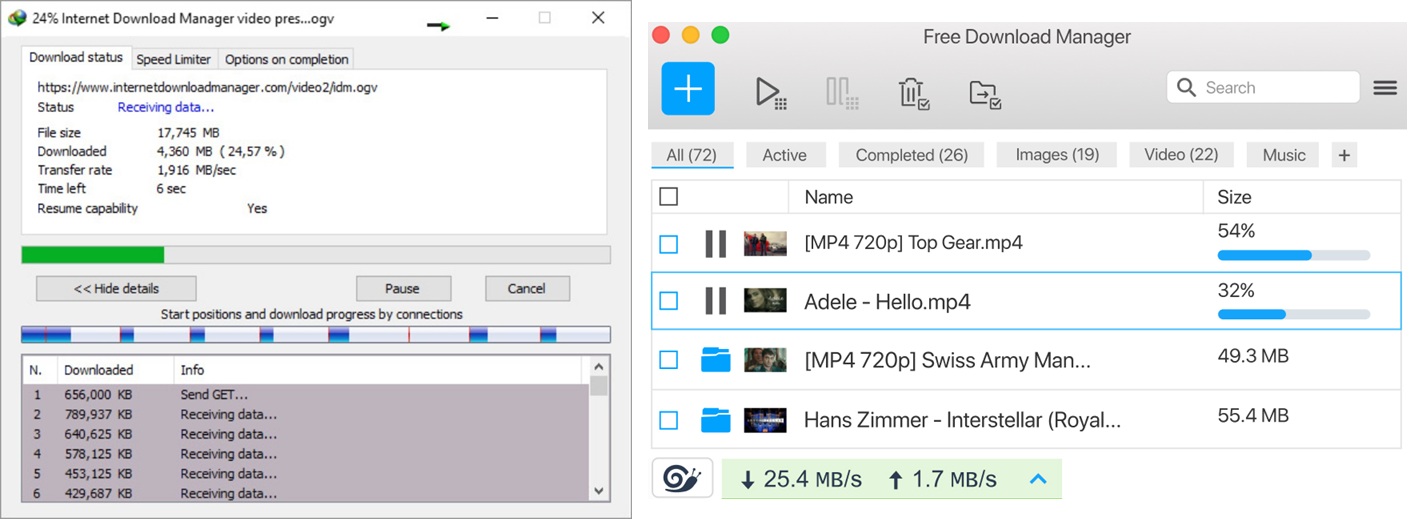
Download managers like Internet Download Manager (IDM) or JDownloader can optimize your speed by splitting files into multiple threads. This method can significantly reduce the time it takes to complete large downloads and helps prevent interruptions.
2. Upgrade to Filejoker Premium
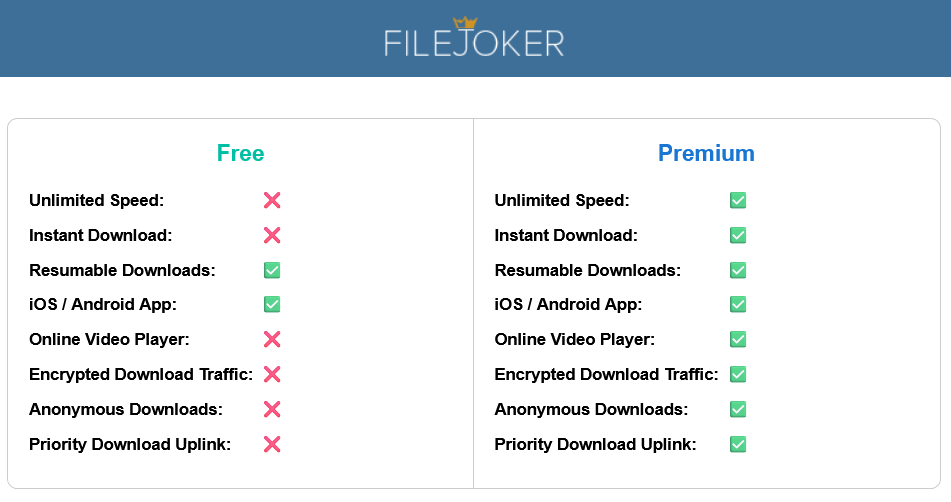
One of the biggest limitations with a free Filejoker account is throttled speed and waiting time. Premium users benefit from:
- No speed limits
- Simultaneous downloads
- Unlimited file sizes
- No waiting time between downloads
If you download files regularly, going premium is the easiest way to unlock Filejoker’s full potential.
Discover premium options: https://filejoker.com.tr/filejoker-premium/
3. Switch to a Wired Internet Connection
Wi-Fi is convenient but can often be inconsistent. Signal interference, distance from the router, or crowded networks can reduce speed. For a more stable and faster connection, plug directly into your modem or router using an Ethernet cable.
4. Avoid Peak Hours
Internet usage is typically higher during the evenings or weekends. Try scheduling your downloads for late at night or early in the morning to benefit from less network congestion — both on your local ISP and on Filejoker’s servers.
5. Clear Your Browser’s Cache or Use Another Browser
Sometimes browser extensions, cookies, or a bloated cache can interfere with downloads. Clear your cache regularly, disable unnecessary extensions, or try an alternative browser like Firefox or Opera if issues persist in Chrome.
6. Disable VPNs or Proxy Servers Temporarily
VPNs can help you stay anonymous, but they often reduce your internet speed by routing your data through additional servers. For faster downloads, try disabling your VPN or proxy and download directly — especially if you’re already using a secure connection.
7. Close Background Applications
Make sure no other apps or devices are using your bandwidth. Pause streaming services, cloud sync tools (like Google Drive or Dropbox), or other downloads running in the background. This frees up more bandwidth for Filejoker.
Tip: Use Task Manager (Windows) or Activity Monitor (macOS) to identify and close apps consuming high network resources.
Final Thoughts
Filejoker can offer high-speed downloads — especially with a premium account — but your internet setup and habits play a big role. By implementing the tips above, you’ll likely see noticeable improvements in speed and reliability.
If you’ve tried all these suggestions and still experience slow speeds, consider contacting Filejoker’s support team for more direct help.
386